
Desktop Survival Guide
by Graham Williams

|
|
DATA MINING
Desktop Survival Guide by Graham Williams |
|
|||
|


|
One of the simplest and most common ways of sharing data today is via the CSV format. The Spreadsheet option of the Data tab provides an easy way to load data from many different sources into Rattle.
CSV is an abbreviation of ``comma separated value'' and is a standard file format often used to exchange data between applications. CSV files can be exported from spreadsheets and databases, including OpenOffice Calc, Gnumeric, MS/Excel, SAS/Enterprise Miner, Teradata and Netezza Data Warehouses, and many, many, other applications.
This is a pretty good option for importing our data into Rattle, although it does lose meta data information (that is, information about the data types of the dataset). Without this meta data R sometimes guesses at the wrong data type for a particular column, but it isn't usually fatal!
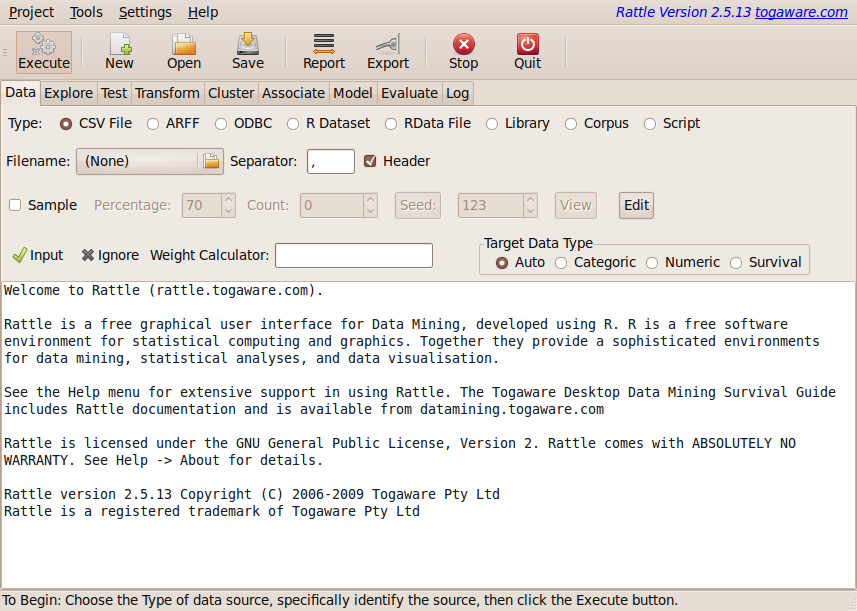
To load a dataset from a CSV file, click in the Filename button (Figure 4.2) to display a file chooser dialogue (Figure 4.3).
 |
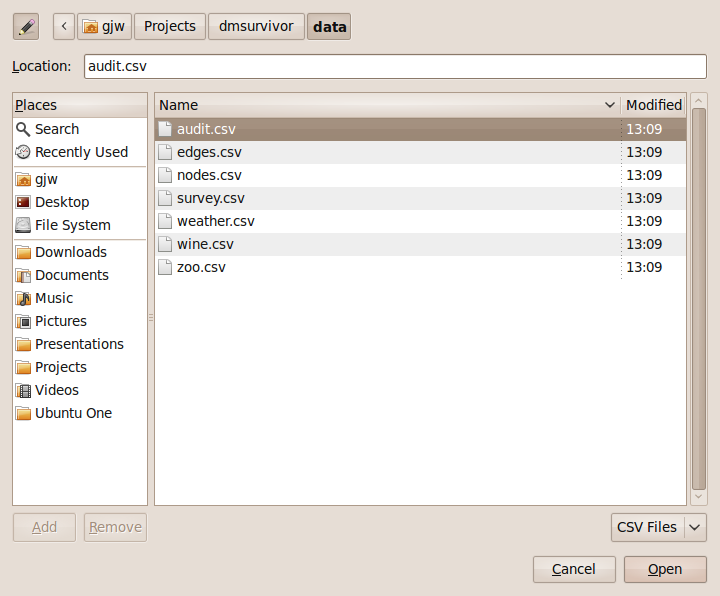 |
We use the CSV file chooser dialogue to browse our file system to find the file we wish to load into Rattle. By default, only files that have a .csv extension will be listed (together with folders).
The pull down menu near the bottom right of the file chooser dialogue (above the Open button) allows us to select alternative filters for the files listed. We can list files that end with a .csv or a .txt, or else we can list all files.
The panel within the left region of the popup allows us to browse to the different file systems available to us, while the series of buttons along the top allow us to navigate through a series of folders on a single file system. Once we have navigated to the folder containing the CSV file we wish to load we can select this file in the main panel of the file chooser dialogue. Clicking the Open button tells Rattle that this is the file we are interested in (without yet actually loading it).
So we have not yet told Rattle to actually load the data--we have just identified where the data is. We now click the Execute button (or press the F5 key) to load the dataset from the file on the hard disk into the computer's memory, for processing by Rattle.
A sample CSV file is provided by Rattle and is called weather.csv. It will have been installed when Rattle was installed and we can find it's actual location with the system.file function which we type into the R Console:
> system.file("csv", "weather.csv", package = "rattle")
|
[1] "/usr/local/lib/R/site-library/rattle/csv/weather.csv" |
The location reported by this function will depend on your installation. Here we see the location as it might be on a GNU/Linux system.
We can review the contents of the file using the file.show function:
> file.show(system.file("csv", "weather.csv",
                        package = "rattle"))
|
As we saw in Chapter ![[*]](crossref.png) the simplest way to load
this file into Rattle is to leave the Spreadsheet option's
Filename entry empty and click the Execute
button. You will be asked whether you would like to load the
weather dataset--choose Yes.
the simplest way to load
this file into Rattle is to leave the Spreadsheet option's
Filename entry empty and click the Execute
button. You will be asked whether you would like to load the
weather dataset--choose Yes.
The top of the weather.csv file will be similar to the following (perhaps with quotes around values, although they are not necessary, and perhaps with some different values, and for brevity the header row is skipped):
2007-11-01,Canberra,8,24.3,0,3.4,6.3,NW,30,SW,NW,6,20,68,29,1019.7... 2007-11-02,Canberra,14,26.9,3.6,4.4,9.7,ENE,39,E,W,4,17,80,36,1012.4... 2007-11-03,Canberra,13.7,23.4,3.6,5.8,3.3,NW,85,N,NNE,6,6,82,69,1009.5... 2007-11-04,Canberra,13.3,15.5,39.8,7.2,9.1,NW,54,WNW,W,30,24,62,56,1005.5... 2007-11-05,Canberra,7.6,16.1,2.8,5.6,10.6,SSE,50,SSE,ESE,20,28,68,49,1018.3... 2007-11-06,Canberra,6.2,16.9,0,5.8,8.2,SE,44,SE,E,20,24,70,57,1023.8... 2007-11-07,Canberra,6.1,18.2,0.2,4.2,8.4,SE,43,SE,ESE,19,26,63,47,1024.6... |
As we can see, a CSV file is actually a normal text file that we could load into any text editor to review its contents. A CSV file usually begins with a header row, listing the names of the variables, each separated by a comma. If any name (or indeed, any value in the file) contains an embedded comma, then that name (or value) will be surrounded by quote marks. The remainder of the file after the header is expected to consist of rows of data that record information about the observations, with fields separated by commas recording the values of the variables for this observation.
As we noted above, after identifying the file to load we now need to
click the Execute button to actually load the dataset into
Rattle. The main text panel of the Data tab changes to
list the variables, together with their types and roles, and some
other useful information (Figure ).
Loading data into Rattle from a CSV file simply uses the R function read.csv. We can see this to be the case by reviewing the contents of the Log tab. The function is simply used as follows:
> crs$dataset <- read.csv("file:.../weather.csv",
                          na.strings=c(".", "NA", "", "?"))
|
Here, the full path to the file is left out for brevity. There are two things to note here. The first is that the dataset is loaded into a variable called crs$dataset. This is an internal variable used by Rattle. In fact, it is an element of a list variable called crs (current rattle state) and the element itself is called dataset.
The second thing to note is that by default Rattle will treat any one of four strings as representing missing values (NAs in R). This captures the most common approaches to representing missing values. SAS, for example, uses the dot (``.'') to denote missing values and R uses the special string ``NA'' to denote missing values. Other applications imply leave use the empty string, whilst yet others (including machine learning applications like C4.5) use the question mark (``?'').
For our convenience as we work on examples through the remainder of the book, we will also load the dataset from Rattle as the weather dataset. After loading the Rattle package we can make the dataset know to R with the data function:
> data(weather) |
This will be equivalent to reading the data from the CSV file.
The Rattle interface provides a number of options for tuning how we
read the data from a CSV file, as we can see in
Figure 4.2. We can choose the field
delimiter through the Separator entry. A comma is the
default. To load a .txt file which
uses a tab as the field separator enter the special code \\t
(that is, two slashes followed by a t) as the separator. You
can also leave the separator empty and any white space will be used as
the separator.
The other option of interest when loading a dataset is the Header check box. Generally, CSV files have as their first row the column names. These column names will be used with R and Rattle as the names of the variables. However, not all CSV files include headers, and if that is the case for a file we want to load into Rattle the click the check box to remove the check mark. On loading a CSV file that does not contain headers R will generate variable names.
UP TO HERE
Todo: Requires updating to the Weather data once we have the final form of the weather dataset available.
We can start getting an idea of the shape of the data from this simple summary. For example, the first two variables, ID and Age, are both identified as integers (int). The first few values of ID are 1004641, 1010229, 1024587, and so on. They all appear to be of the same length (i.e, the same number of digits) and together with having a name like ID provides a very strong indicator that this is some kind of identifier for each observation. The first few values of Age are 38, 35, 32, 45, 60, and so on.
The next variable, Employment, illustrates how R deals with categoric variables. In R terms it is a Factor with 8 levels (i.e., 8 possible values). The levels begin with "Consultant" and "Private". The following sequence of numbers, all of which happen to be 2 for the first 10 observations of this dataset, discloses how R stores categoric data. Effectively, R maintains an integer indexed table, associating the levels with integers, so that "Consultant" is associated with 1, "Private" with 2, and so on. Then only these integers need to be stored for each observation, which is generally more efficient on memory usage. We see this more convincingly for the following categoric variables, Education, Marital, and Occupation (because they have more than just a single level displayed in this summary).
The seventh variable, Income, has been identified as a
more general numeric rather than specific integer variable. The
display of the first few values does not actually give us any insight
as to why this might be so, but reviewing the actual CSV data as above
we see that the third observation actually has a value of  for
Income, indicating that these values are real numbers
rather than just integers.
for
Income, indicating that these values are real numbers
rather than just integers.
We also note that Adjusted, for example, looks like it might be a categoric variable, with values 0 and 1, but R identifies it as an integer! That's fine for our purposes here. We can always changes this later.